How to keep sticky notes always on top in Windows 11 and 10
By Adam Działo Updated
Why sticky notes fall behind other windows
Windows puts the window you click in front of everything else. A sticky note is an ordinary window, so the moment you click your spreadsheet, the note slips behind it. Unless the app has its own “on top” switch, it stays buried.
Staying on top is the easy part. Staying on top without getting in your way is harder, because a window that comes to the front normally takes over the keyboard too. GeniusNotes shows its notes above your other windows without taking the keyboard away from the program you’re typing in, and it reacts to Windows’ own app-switch signal, so the right note is there the moment you switch.
Method 1: PowerToys Always On Top (any app)
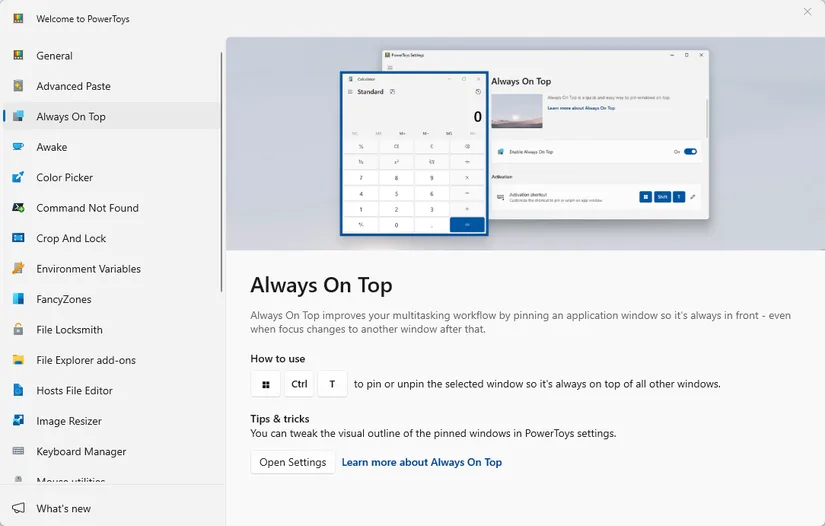
PowerToys is a free set of tools from Microsoft. Its Always On Top tool can pin any window, including every sticky notes app.
- Install Microsoft PowerToys from the Microsoft Store.
- Open PowerToys, go to Always On Top and make sure it is turned on.
- Click the sticky note you want to keep visible.
- Press Win+Ctrl+T. A colored border shows the window is pinned. Press the same keys again to unpin it.
Method 2: Pin a note in GeniusNotes
- Install GeniusNotes from the Microsoft Store. It’s free.
- Press Alt+N to create a note, and type.
- Click the pin button on the note. It now stays on top of every window until you unpin it.
- About to share your screen? Alt+Shift+H unpins and hides every note at once.
Often better: on top of one app only
A note that is always on top gets in the way quickly: it sits over your video call and your games too. GeniusNotes notes that aren’t pinned belong to the program you made them in. They stay on top of that program only, and hide the moment you switch to anything else. For a middle ground, dock a pinned note to the edge of the screen: it stays within reach without covering your work.
Method 3: Microsoft Sticky Notes’ own option
Only the new Microsoft Sticky Notes (2024 and later, the one that opens from OneNote) can pin a note, and it does so by turning the note into a separate floating window:
- Open Sticky Notes from the Start menu or from OneNote.
- Open the note and click the pop-out button at its top right. The note opens in its own window.
- Click the pin icon on that window. The note now stays on top of other windows.
Some versions don’t show the pin yet, and the classic Sticky Notes app has no on-top option at all. If yours doesn’t, use Method 1. The new app can also dock its whole list of notes to the side of the desktop, next to your other windows.
Still falling behind?
- Full-screen games and videos can cover ordinary notes, pinned or not: switch them to windowed or borderless mode. GeniusNotes notes stay on top of games even in full-screen mode, so you can look up MOBA builds or MMO recipes without alt-tabbing.
- Apps running as administrator can cover pinned windows. To fix that, run PowerToys as administrator too.
- After a restart, check that PowerToys started with Windows. GeniusNotes restores pinned notes by itself.
Frequently asked questions
- How do I keep sticky notes on top in Windows 11?
- Install Microsoft PowerToys, turn on Always On Top, click the note and press Win+Ctrl+T. It works with any sticky notes app. GeniusNotes has pinning built in, so no extra tool is needed there.
- Does Windows 10 have an always on top option?
- Not for every window. A few apps have their own (Calculator in Standard mode, for example). For the rest, PowerToys Always On Top works on Windows 10 and 11.
- Can a sticky note stay on top of just one program?
- Yes, with GeniusNotes. A note you create in a program shows on top of that program only and hides when you switch to anything else.