How to keep a calculator always on top in Windows 11 and 10
By Adam Działo Updated
1. Windows Calculator: Keep on top (built in)
- Open Calculator from the Start menu.
- Make sure it is in Standard mode (menu at the top left).
- Click the Keep on top button next to the word Standard, or press Alt+Up.
- Calculator shrinks to a compact window that stays above everything. Press Alt+Down to return to the full window.
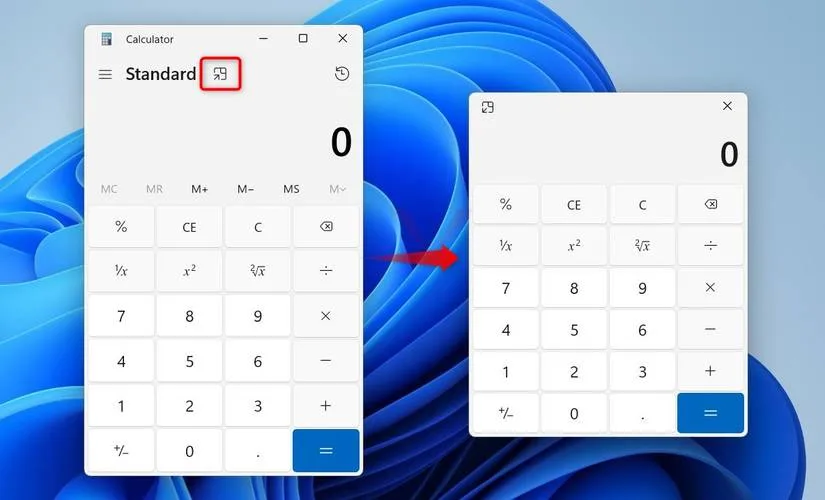
The catch: it only works in Standard mode, so there are no scientific functions on top. The compact window is also simplified: it doesn’t show the history, and resizing it is limited.
2. PowerToys Always On Top (any mode)
Need scientific or programmer mode on top? PowerToys, Microsoft’s free power-user toolkit, can pin any window.
- Install Microsoft PowerToys from the Microsoft Store and make sure Always On Top is turned on.
- Open Calculator in any mode and click it.
- Press Win+Ctrl+T. A colored border shows it’s pinned. The same keys unpin it.
More on this tool in how to keep sticky notes always on top.
3. GeniusUtility: a calculator that docks to the screen edge (free)
GeniusNotes comes with GeniusUtility, a free calculator panel (no premium needed) that floats above every window. Unlike the built-in option, you can park it at the edge of the screen as a small tab and pull it back out when you need it.
- Install GeniusNotes from the Microsoft Store.
- Press Alt+Shift+U, or click the calculator button in the GeniusNotes window.
- Drag the panel to the screen edge to tuck it away as a tab. It keeps its result and history while docked.
- Keeps your last 100 results.
- Ctrl+C copies the result.
- Square root and powers, alongside the four basics.
- Remembers where you left it, even after a restart.
Which one should you use?
| Feature | Windows Calculator | PowerToys | GeniusUtility |
|---|---|---|---|
| Price | Free | Free | Free |
| Extra install | Preinstalled | Yes | Yes |
| Scientific functions on top | No | Yes | Square root and powers |
| Docks to the screen edge | No | No | Yes |
| Result history | Not in the compact window | Yes | Yes |
| Stays pinned after a restart | No | No | Yes |
Use the built-in Keep on top for a quick sum now and then. Use PowerToys when you need scientific mode on top. Use GeniusUtility if a calculator is open next to your work all day: it docks out of the way and comes back with your history.
Frequently asked questions
- How do I keep Windows Calculator on top?
- Switch Calculator to Standard mode and click the Keep on top button next to the mode name, or press Alt+Up. Press Alt+Down to go back to the full window.
- Why is Keep on top missing in Calculator?
- It only exists in Standard mode. In Scientific, Programmer and the other modes, use Microsoft PowerToys Always On Top instead: click Calculator and press Win+Ctrl+T.
- Is there a calculator that stays on top and docks to the side of the screen?
- Yes. GeniusUtility, the free calculator panel in GeniusNotes, stays above every window and can be parked at the screen edge as a small tab.