How to keep Notepad always on top in Windows 11 and 10
By Adam Działo Updated
Why Notepad falls behind other windows
Windows brings the window you click to the front. Notepad has no switch to stay above the rest, so the moment you click the browser to copy the next line, Notepad slips behind it. That’s a nuisance when Notepad holds a checklist, a phone number or the text you’re copying from.
1. PowerToys Always On Top (Windows Notepad)
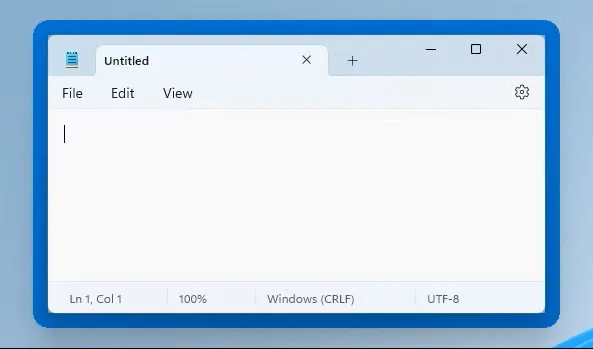
PowerToys is Microsoft’s free power-user toolkit. Its Always On Top tool pins any window, Notepad included.
- Install Microsoft PowerToys from the Microsoft Store.
- Open PowerToys, go to Always On Top and make sure it is turned on.
- Click the Notepad window.
- Press Win+Ctrl+T. A colored border shows it is pinned. Press the same keys again to unpin it.
More on this tool in how to keep sticky notes always on top.
2. GeniusNotes: a notepad that stays on top by itself (included in the free version)
GeniusNotes is a sticky notes app for Windows. Pin a note and it stays above every window, with no extra tool running. Unlike a pinned Notepad window, you can park it at the edge of the screen as a small tab and pull it back out when you need it.
- Install GeniusNotes from the Microsoft Store. It’s free.
- Press Alt+N to create a note, and type or paste your text.
- Click the pin icon on the note. It now stays on top of every window until you unpin it.
- Drag it to the screen edge to tuck it away as a tab.
Used to Notepad’s tabs?
GeniusNote is a single note with as many tabs as you like, text formatting and pasted screenshots. It’s always one shortcut away (Alt+Shift+N) and stays on top for as long as you need it. Part of premium, a one-time purchase.
Often better: on top of one program only
A notepad that is always on top gets in the way: it covers your video calls and your games too. GeniusNotes notes that aren’t pinned belong to the program you made them in. They stay on top of that program only, and hide the moment you switch to anything else.
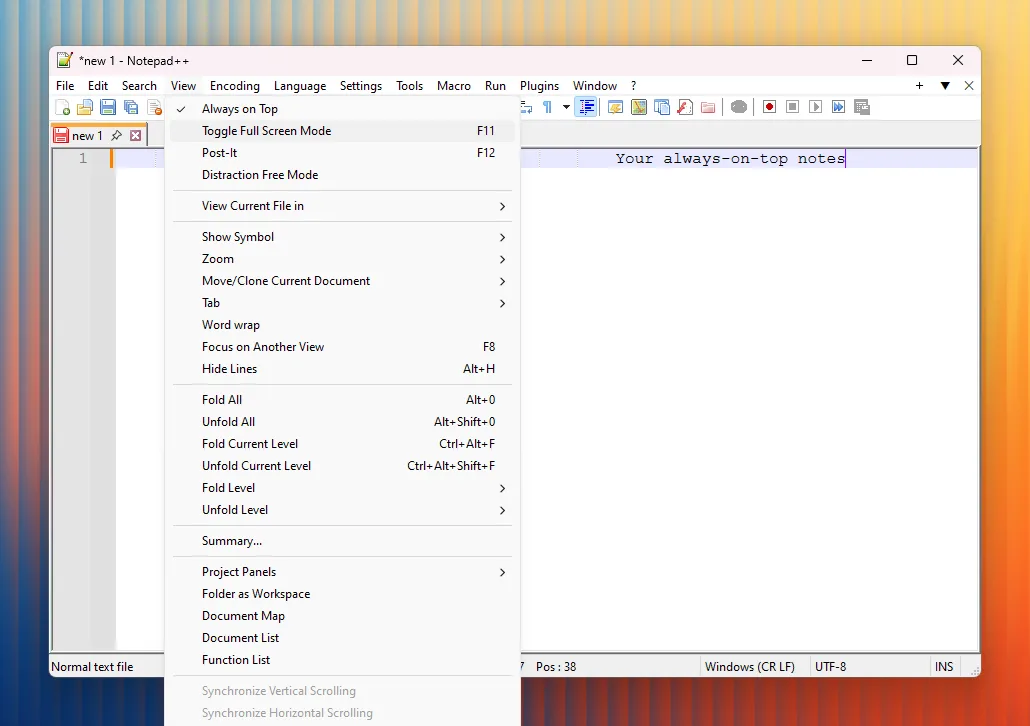
3. Notepad++: Always on Top is built in
If you already use Notepad++, you don’t need anything else. It’s a free text editor, popular with programmers, and the option sits in its menu.
- Open Notepad++.
- Open the View menu and choose Always on Top.
- Choose it again to switch it off.
Notepad++ doesn’t remember the setting after a restart, though, and there’s no keyboard shortcut for it.
Which one should you use?
| Feature | PowerToys + Notepad | GeniusNotes | Notepad++ |
|---|---|---|---|
| Price | Free | Free version is enough | Free |
| On top without a separate tool | No | Yes | Yes |
| Saves ordinary .txt files | Yes | No | Yes |
| Tabs | Windows 11 only | GeniusNote (premium) | Yes |
| Docks to the screen edge | No | Yes | No |
| On top of one program only | No | Yes | No |
| Still on top after a restart | No | Yes | No |
Use PowerToys if you want to keep Windows Notepad and only need it on top now and then. Use GeniusNotes if a notepad sits next to your work all day: it stays on top by itself and tucks away at the screen edge. Use Notepad++ if you edit code or large text files: the option is one click away.
Still falling behind?
- Full-screen games and videos can cover pinned windows. GeniusNotes notes have been tested to stay on top of them anyway; with anything else, switch the game or video to windowed or borderless mode.
- Apps running as administrator can cover pinned windows. To fix that, run PowerToys as administrator too, or try GeniusNotes.
- Two Notepad windows? PowerToys pins only the window you clicked: press Win+Ctrl+T in each one.
Frequently asked questions
- How do I make Notepad stay on top in Windows 11?
- Windows Notepad has no on-top option of its own. Install Microsoft PowerToys, turn on Always On Top, click Notepad and press Win+Ctrl+T. Press the same keys again to unpin it. The same works on Windows 10.
- Does Notepad++ have always on top?
- Yes. In Notepad++, open the View menu and choose Always on Top. Choose it again to switch it off.
- Is there a notepad that stays on top without PowerToys?
- Yes. A pinned note in GeniusNotes stays above every window by itself and can be parked at the screen edge as a small tab, and Notepad++ has the option built in. Both are free.